 Unlinked
How to clean up your LinkedIn feed
If your LinkedIn feed feels more like an ad board than a place to follow people you know, you are not imagining it. Here is why a LinkedIn feed gets noisy, what you can do about it by hand, and how to clean it up automatically.
Why your LinkedIn feed is so noisy
LinkedIn ranks your feed with an algorithm, and it mixes in much more than the posts of the people you follow:
- Promoted posts. Ads that sit between regular posts.
- Suggested posts. Posts from people and pages you do not follow.
- Network activity. Posts that show up only because someone you know liked or commented on them.
- Carousels. “People you may know” and jobs modules in the middle of the feed.
- Everything else. Reposts, celebrations, hiring posts, polls and videos, plus the news sidebar, the messaging pop-up and reaction counts around the page.
What you can do by hand
- Hide posts you do not want from the menu on each post.
- Unfollow the people and pages whose posts you do not want to see.
- Sort the feed by recent instead of top, if you prefer it in time order.
- Remove connections you do not know.
These help, but they work one post or one person at a time, and LinkedIn does not currently give you a setting that switches off promoted or suggested posts. LinkedIn also changes its menus often, so the exact wording may differ.
Clean your LinkedIn feed automatically with Unlinked
Unlinked is a free Chrome extension that does the filtering for you, inside your own browser.
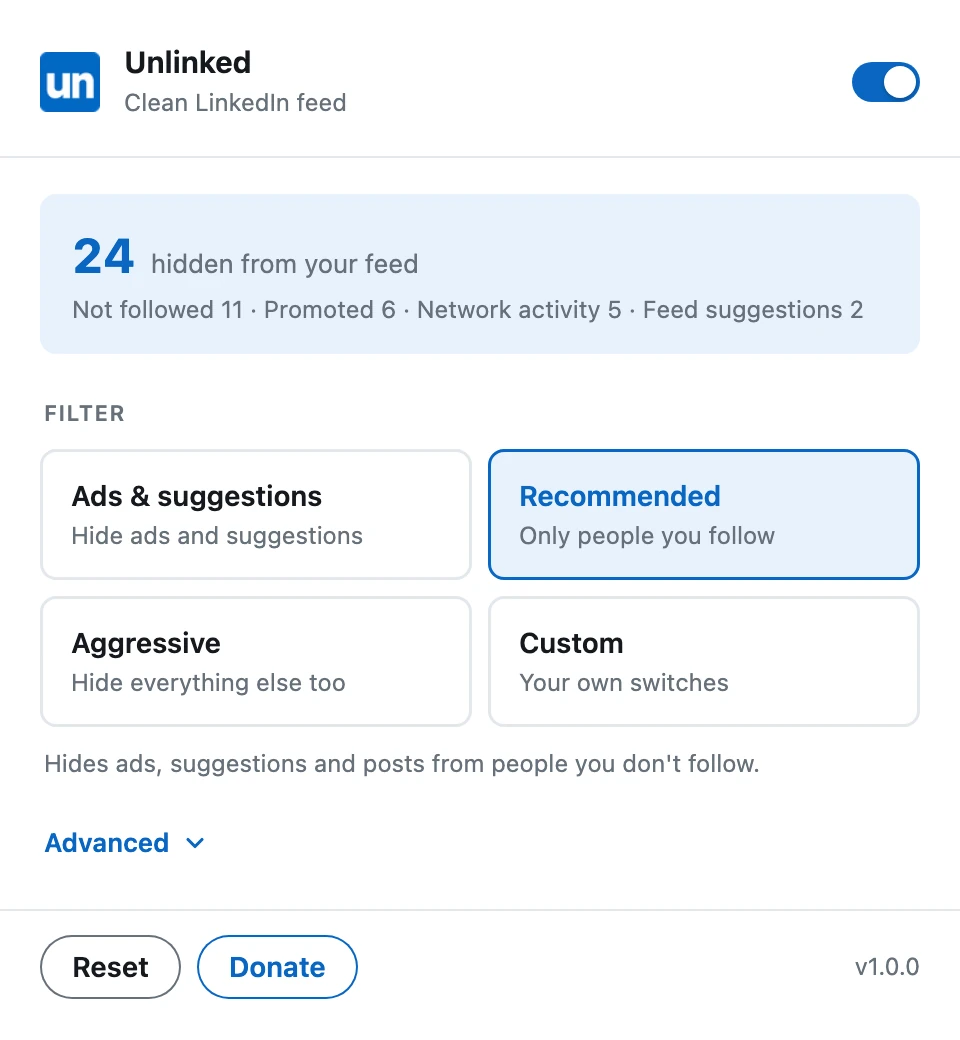
- Install Unlinked. It is coming soon to the Chrome Web Store. It is on by default and starts with the Recommended filter.
- Open linkedin.com. Promoted, suggested and “liked by” posts are hidden as you scroll.
- Pick a filter. Click the Unlinked icon in the toolbar and choose Ads & suggestions, Recommended, Aggressive or Custom.
- Fine-tune it. Under Advanced, hide reposts, celebrations, hiring posts, polls and videos, the sidebars, the messaging pop-up and reaction counts, and add muted keywords or people.
Tips for a calmer LinkedIn feed
- Start with Recommended. Move to Aggressive if you want only the people you follow and nothing around them.
- Add muted keywords for phrases you keep seeing, and muted people for accounts you would rather not read.
- Use focus mode when you only want to post or check messages.
- Click the “N posts hidden” line whenever you are curious what was removed.
Your feed stays private. Unlinked runs only on linkedin.com, works entirely in your browser and sends no data anywhere. Read the privacy policy.
Questions? Check the FAQ or contact support.